Branding App
Guide to Changing FORTE-ION Application Branding
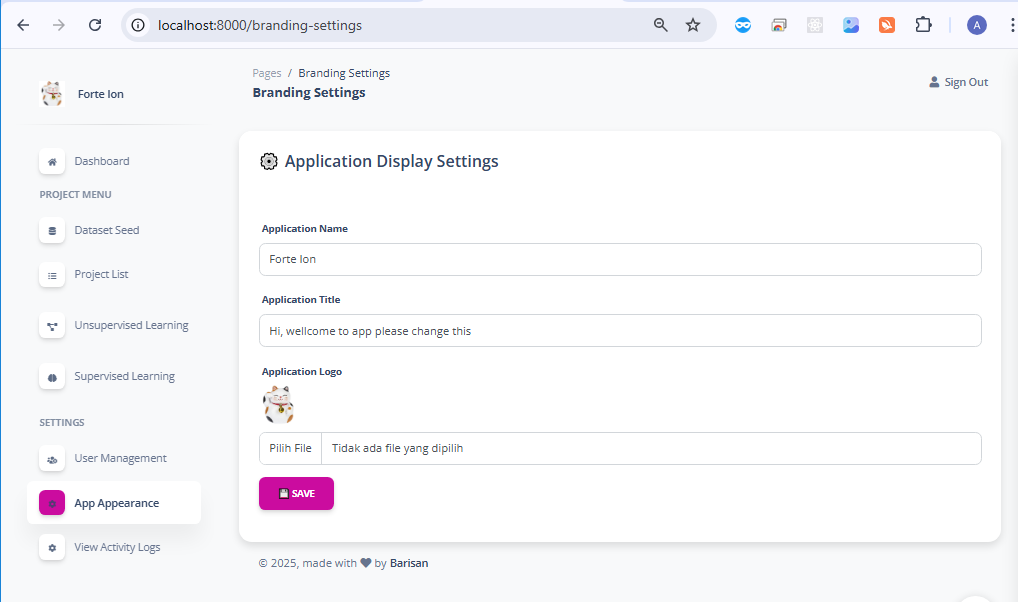
The App Appearance feature (Application Display Settings) allows you to customize the application's name, title, and logo according to your desired branding.
1. Accessing Branding Settings
|
Action Step |
Visual View |
|
Step 1: Log in to the Application Log in to the FORTE-ION application using an administrator account or an account with configuration access rights. |
(Login Complete) |
|
Step 2: Select the App Appearance Menu From the navigation panel (menu) on the left, scroll to the SETTINGS section and click the "App Appearance" menu. |
|
|
|
|
2. Changing Application Identity
On the "Application Display Settings" page, you can fill in and change the application's branding details.
|
Action Step |
Notes & Details |
|
Step 3: Fill in Application Name |
In the "Application Name" field, enter the new or desired application name (e.g., My Research App, Data Analysis Application, etc.). |
|
Step 4: Fill in Application Title |
In the "Application Title" field, enter a brief description or welcome title (e.g., Welcome to the Data Analysis Platform, or change the text “Hi, welcome to app please change this”). |
|
Step 5: Upload Application Logo |
In the "Application Logo" section: a. Click the "Choose File" button. b. Select the application logo image file (usually PNG or JPG format) from your computer. This logo will appear in the navigation panel (menu) and elsewhere in the application. |
|
Step 6: Save Changes |
After all fields are filled and the logo has been selected, click the purple "SAVE" button to save and apply your branding changes. |